Flutter Firebase Authentication with Riverpod 2.5 and GoRouter

Firebase offers many useful login features for Flutter apps. Riverpod is also a popular tool for managing app state. This guide shows how to use both tools together.
You will learn how to use Firebase login with Riverpod code generation. You will also add a GoRouter login check and show loading states during login.
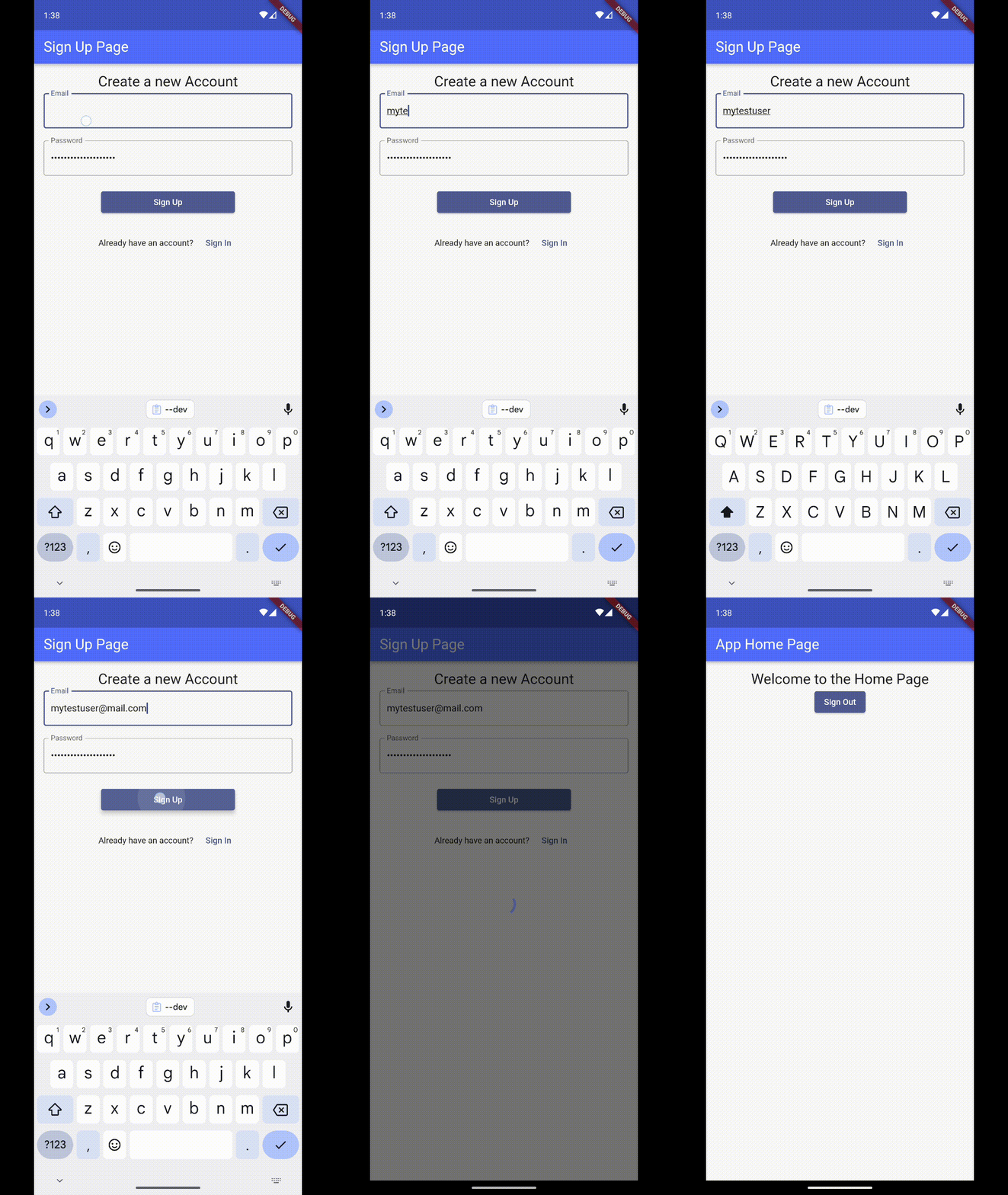
What we are going to build
This guide assumes that your Firebase project is already connected to your Flutter app. If it is not, follow the official Firebase guide first. https://firebase.google.com/docs/auth/flutter/start
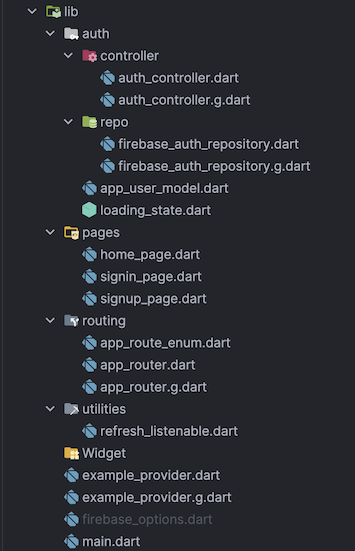
Folder Structure
Getting started
First, install the required packages.
Dependencies
flutter pub add firebase_auth
flutter pub add flutter_riverpod
flutter pub firebase_core
flutter pub riverpod_annotation
Development Dependencies
flutter pub riverpod_generator --dev
flutter pub riverpod_lint --dev
flutter pub build_runner --dev
Next, start Firebase Authentication in the app. Add these lines at the start of the main function. You can also connect the app to the Firebase emulator in debug mode.
//main.dart

WidgetsFlutterBinding.ensureInitialized();
await Firebase.initializeApp(options: DefaultFirebaseOptions.currentPlatform);


// optional
if (kDebugMode) {
    await FirebaseAuth.instance.useAuthEmulator('localhost', 9099);
}
Riverpod
To use Riverpod, add a ProviderScope at the top of the widget tree. It stores provider state and lets you change provider behavior when needed. Your main function should look like this:
// main.dart

void main() async {
    WidgetsFlutterBinding.ensureInitialized();
    await Firebase.initializeApp(options: DefaultFirebaseOptions.currentPlatform);

    if (!kDebugMode) {
        await FirebaseAuth.instance.useAuthEmulator('localhost', 9099);
    }

    // * your other configuration *

    runApp(
        const ProviderScope(
            child: MyApp(),
        ),
    );
}
About code generation
Since version 2.5, Riverpod recommends code generation for providers. It gives you clearer code, better debugging, less repeated code, and stateful hot reload.
Code generation needs build_runner. This Flutter tool creates code and runs in the background from the command line.
Riverpod plans to use static metaprogramming in the future. At that point, build_runner will no longer be needed. This example uses code generation because it is the recommended approach.
For more details on code generation and migration from regular provider, checkout the official Riverpod documentation. https://riverpod.dev/docs/concepts/about_code_generation
Creating an example provider
This section is not required for the rest of the guide and is only designed for total beginners to Riverpod code generation.
Let’s create a small example in the example_provider.dart file.
// example_provder.dart

// 1. import the riverpod_annotation.dart
import 'package:riverpod_annotation/riverpod_annotation.dart';

// 2. add the part file to mark for code generation
part 'example_provider.g.dart';

// 3. add the @riverpod annotation and create your provider function
@riverpod
String example(ExampleRef ref) {
    return 'This an example provider';
}
First, import the riverpod_annotation package. Then add the part keyword, the current file name, .g, and .dart. This tells build_runner where to save the generated code.
Next, use the @riverpod annotation above a function. This function needs a ref parameter. Its type is the provider name with a capital first letter, followed by Ref. At first, this type does not exist. Start build_runner to create it:
dart run build_runner watch
The watch option lets build_runner create new code each time a file changes.
Build_runner creates the example_provider.g.dart file and fixes the ref type error. It also creates exampleProvider. You can read its value with any ref:
final example = ref.watch(exampleProvider);
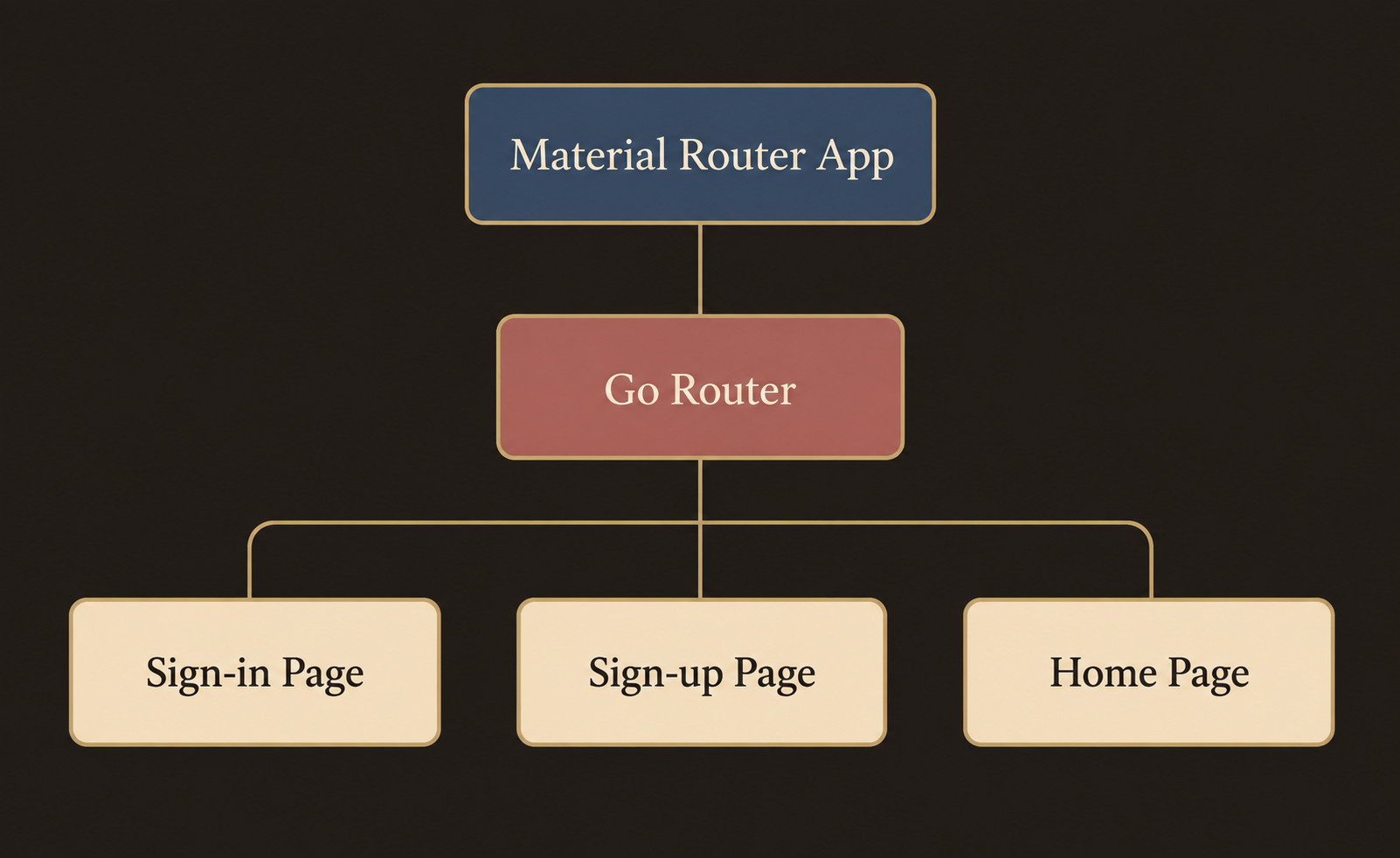
Project Structure
Authentication
We start with an AuthenticationRepository. This class handles all calls to the Firebase Auth SDK. Keeping these calls in one place makes the login flow easier to test. It also makes Firebase easier to replace later.
//firebase_auth_repository.dart

class FirebaseAuthenticationRepository
{
AuthenticationRepository(this.firebaseAuth);

final FirebaseAuth _firebaseAuth;
    // .. add other functions here
}
After creating the repository, we share it across the app with Riverpod providers. The Firebase Auth provider gives the SDK instance to the repository. Both providers use keepAlive: true because the app needs them at all times.
//firebase_auth_repository.dart

@Riverpod(keepAlive: true)
FirebaseAuthenticationRepository authRepository(AuthRepositoryRef ref) {
    final auth = ref.watch(firebaseAuthProvider);
    return FirebaseAuthenticationRepository(auth);
}
@Riverpod(keepAlive: true)
    FirebaseAuth firebaseAuth(FirebaseAuthRef ref) {
    return FirebaseAuth.instance;
}
Before we add login, let’s look at how Firebase Authentication works. FirebaseAuth.instance gives us access to the Firebase Auth SDK. Its currentUser value contains the signed-in user. If nobody is signed in, the value is null. Add a function to read it:
User? get currentUser => _firebaseAuth.currentUser;
Firebase returns its own User class. We do not want to use this SDK class outside the repository. Instead, we map it to a local AppUser class that the whole app can use:
// app_user_model.dart

class AppUser {
    const AppUser({
        required this.uid,
        this.email,
        this.emailVerified = false,
        this.displayName,
    });

    final String uid;
    final String? email;
    final bool emailVerified;
    final String? displayName;

    // We will use this function to map the Firebase to our AppUser
    static AppUser? fromUser(User? user) {
    if (user == null) {
        return null;
    }
    return AppUser(
        uid: user.uid,
        email: user.email,
        displayName: user.displayName,
        emailVerified: user.emailVerified,
    );
    }
}
Now replace the currentUser function with this version:
//firebase_auth_repository.dart inside the repository

AppUser? get currentUser => _convertUser(_firebaseAuth.currentUser);

// converts the nullable FirebaseUser to our AppUser
AppUser? _convertUser(User? user) =>
user == null ? null : AppUser.fromUser(user);
Firebase can also report changes to the user state. It offers authStateChanges, idTokenChanges, and userChanges. Each function returns a stream. We only need authStateChanges for this login flow. Add it to the repository:
//firebase_auth_repository.dart inside the repository
Stream<AppUser?> authStateChanges() {
    return _firebaseAuth.authStateChanges().map(_convertUser);
}
Create a provider that listens to these login changes:
//firebase_auth_repository.dart

@Riverpod(keepAlive: true)
Stream<AppUser?> authStateChange(AuthStateChangeRef ref) {
    final auth = ref.watch(authRepositoryProvider);
    return auth.authStateChanges();
}
We can now add the sign-in, sign-out, and sign-up functions.
//firebase_auth_repository.dart inside the repository

Future<void> signInWithEmailAndPassword({
    required String email,
    required String password,
}) {
    return _firebaseAuth.signInWithEmailAndPassword(
        email: email,
        password: password,
    );
}

Future<void> createUserWithEmailAndPassword({
    required String email,
    required String password,
}) {
    return _firebaseAuth.createUserWithEmailAndPassword(
        email: email,
        password: password,
    );
}

Future<void> signOut() async {
    return _firebaseAuth.signOut();
}
Handle loading states
The repository is ready, but it does not manage loading states. A loading state lets us show progress and errors. It also stops users from starting the same login more than once.
We will create a notifier provider. It calls the repository and stores whether the app is loading, successful, or has an error. This makes the login flow easier to control.
First, add a class to loading_state.dart. It stores the loading and error states:
// loading_state.dart

class AuthLoadingState {
    const AuthLoadingState(this.state, this.error);

    final LoadingStateEnum state;
    final Exception? error;

    bool get isLoading => state == LoadingStateEnum.loading;

    bool get hasError => state == LoadingStateEnum.error;
}

enum LoadingStateEnum {
    initial,
    loading,
    success,
    error,
}
Next, create the notifier provider in auth_controller.dart. Each function sets the state to loading. When it finishes, the state changes to success or error.
// auth_controller.dart

part 'auth_controller.g.dart';

@riverpod
class AuthController extends _$AuthController {

    @override
    AuthLoadingState build() {
        return const AuthLoadingState(LoadingStateEnum.initial, null);
    }

    Future<void> sigInInUserWithEmailAndPassword(
    String email, String password) async {
        state = const AuthLoadingState(LoadingStateEnum.loading, null);
        try {
            final authRepository = ref.watch(authRepositoryProvider);
            await authRepository.signInWithEmailAndPassword(
            email: email, password: password);
            state = const AuthLoadingState(LoadingStateEnum.success, null);
            } on Exception catch (e) {
            state = AuthLoadingState(LoadingStateEnum.error, e);
        }
    }

    Future<void> createUserWithEmailAndPassword(
    String email, String password) async {
        state = const AuthLoadingState(LoadingStateEnum.loading, null);
        try {
            final authRepository = ref.watch(authRepositoryProvider);
            await authRepository.createUserWithEmailAndPassword(
            email: email, password: password);
        state = const AuthLoadingState(LoadingStateEnum.success, null);
        } on Exception catch (e) {
            state = AuthLoadingState(LoadingStateEnum.error, e);
        }
    }
    Future<void> signOut() async {
        state = const AuthLoadingState(LoadingStateEnum.loading, null);

        final authRepository = ref.watch(authRepositoryProvider);
        try {
            await authRepository.signOut();
            state = const AuthLoadingState(LoadingStateEnum.success, null);
        } on Exception catch (e) {
            state = AuthLoadingState(LoadingStateEnum.error, e);
        }
    }
}
User interface
The authentication controller is ready. We can now build the user interface. We start with the home page because it needs little extra logic.
// home_page.dart

class AppHomePage extends ConsumerWidget {
    const AppHomePage({super.key});

    @override
    Widget build(BuildContext context, WidgetRef ref) {
        return Scaffold(
            appBar: AppBar(
                title: const Text('App Home Page'),
            ),
            body: Padding(
                padding: const EdgeInsets.all(16.0),
                child: Center(
                    child: Column(
                    children: [
                        const Text('Welcome to the App Home Page'),
                        ElevatedButton(
                            onPressed: () async {
                            await ref.read(authControllerProvider.notifier).signOut();
                            },
                            child: const Text('Sign Out'),
                            ),
                        ],
                    ),
                ),
            ),
        );
    }
}
Ok now let’s add the sigin page
// signin_page.dart

class SignInPage extends ConsumerStatefulWidget {
    const SignInPage({super.key});

    @override
    ConsumerState<SignInPage> createState() => _SignInPageState();
    }

    class _SignInPageState extends ConsumerState<SignInPage> {
    final TextEditingController _emailController = TextEditingController();
    final TextEditingController _passwordController = TextEditingController();

    Future<void> _signIn() async {
    final auth = ref.read(authControllerProvider.notifier);

        await auth.sigInInUserWithEmailAndPassword(
        _emailController.text.trim(),
        _passwordController.text.trim(),
        );
    }

    @override
    Widget build(BuildContext context) {
    return Scaffold(
    appBar: AppBar(
        title: const Text('Sign In Page'),
    ),
    body: Padding(
        padding: const EdgeInsets.all(16.0),
        child: Column(
        children: [
            const Text(
            'Welcome Back',
            style: TextStyle(fontSize: 24),
            ),
            const Text('Sign in to your account'),
            const SizedBox(
            height: 5,
            ),
            TextField(
            controller: _emailController,
            decoration: const InputDecoration(
                border: OutlineInputBorder(),
                labelText: 'Email',
            ),
            ),
            const SizedBox(
            height: 20,
            ),
            TextField(
            controller: _passwordController,
            decoration: const InputDecoration(
                border: OutlineInputBorder(),
                labelText: 'Password',
            ),
            obscureText: true,
            ),
            const SizedBox(
            height: 20,
            ),
            SizedBox(
            width: MediaQuery.sizeOf(context).width * 0.5,
            child: ElevatedButton(
                onPressed: _signIn,
                child: const Text('Sign In'),
            ),
            ),
            const SizedBox(
            height: 20,
            ),
            Row(
            mainAxisAlignment: MainAxisAlignment.center,
            children: [
                const Text('Don\'t have an account?'),
                const SizedBox(
                width: 10,
                ),
                TextButton(
                onPressed: () {
                    context.goNamed(AppRoutes.signUp.routeName);
                },
                child: const Text('Sign Up'),
                ),
            ],
            ),
        ],
        ),
    ),
    );
}
}
There are several ways to show a loading sign. This example uses ref.listen. Ref.watch returns the current provider value. Ref.listen runs a callback with the old and new values.
We use ref.listen to show progress while the controller is loading. We hide it after success or an error. If an error happens, we also show an error message. Add this at the start of the build function.
We also need to store the loading dialog context. Add _progressIndicatorContext to the widget state.
// signin_page.dart

// loading indicator context inside _SignInPageState
BuildContext? _progressIndicatorContext;

// add dispose methode to the state of the widget
@override
void dispose() {
    // dispose controllers
    _emailController.dispose();
    _passwordController.dispose();

    // close loading dialog when closing page
    if (_progressIndicatorContext != null &&
        _progressIndicatorContext!.mounted) {
    Navigator.of(_progressIndicatorContext!).pop();
    _progressIndicatorContext = null;

    }
    super.dispose();
}
// signin_page.dart build function

Widget build(BuildContext context) {
    ref.listen(authControllerProvider, (prev, state) async {
    if (state.isLoading) {
        await showDialog(
        context: context,
        builder: (ctx) {
            _progressIndicatorContext = ctx;
            return const Center(
            child: CircularProgressIndicator(),
            );
        },
        );
        return;
    }

    // close circular progress indicator after rebuild to guarantee that the
    // context is still valid
    WidgetsBinding.instance.addPostFrameCallback((timeStamp) {
        if (_progressIndicatorContext != null &&
            _progressIndicatorContext!.mounted) {
        Navigator.of(_progressIndicatorContext!).pop();
        _progressIndicatorContext = null;
        }
    });

    if (state.hasError) {
        ScaffoldMessenger.of(context).showSnackBar(
        SnackBar(
            behavior: SnackBarBehavior.floating,
            content: Text('Error: ${state.error}'),
        ),
        );
    }
    });
    // rest of the build function
    ...
}
The progress sign is shown in a dialog. The dialog creates a new context, so we save it and close it later. We use addPostFrameCallback to close the dialog only after the widget rebuild is complete and the context is ready.
The sign-up page is almost the same as the sign-in page, so it is not shown here. You can find it with the full project in the GitHub link at the end.
Set up routing
Now we add app routes and a login check. This check sends users to the sign-in page when they are not logged in. It uses the authStateChanges stream from the repository.
We use the GoRouter package installed at the start. First, create a GoRouter instance and set up each route. Add an enum in app_route_enum.dart to store the routes. Then add an extension with the path and name of each route.
// app_route_enum.dart

enum AppRoutes {
    home,
    signIn,
    signUp,
}

extension AppRoutesExtension on AppRoutes {
    String get path {
    switch (this) {
        case AppRoutes.home:
    return '/';
        case AppRoutes.signIn:
    return '/signin';
        case AppRoutes.signUp:
    return '/signup';
    }
}

String get routeName {
    switch (this) {
        case AppRoutes.home:
            return 'Home';
        case AppRoutes.signIn:
            return 'SignIn';
        case AppRoutes.signUp:
            return 'SignUp';
        }
    }
}
Now create the router provider in app_router.dart. This provider can read the user login state. Define the routes and the first page:
// app_router.dart

part 'app_router.g.dart';

final _key = GlobalKey<NavigatorState>();

@riverpod
GoRouter router(RouterRef ref) {
    // accessing the auth repository
    final auth = ref.watch(authRepositoryProvider);
    return GoRouter(
        navigatorKey: _key,
        initialLocation: AppRoutes.home.path,
        routes: [
        GoRoute(
            path: AppRoutes.home.path,
            name: AppRoutes.home.routeName,
            pageBuilder: (context, state) => const MaterialPage(
                child: AppHomePage(),
            ),
        ),
        GoRoute(
            path: AppRoutes.signIn.path,
            name: AppRoutes.signIn.routeName,
            pageBuilder: (context, state) => const MaterialPage(
                child: SignInPage(),
            ),
        ),
        GoRoute(
            path: AppRoutes.signUp.path,
            name: AppRoutes.signUp.routeName,
            pageBuilder: (context, state) => const MaterialPage(
                child: SignUpPage(),
            ),
        ),
        // * your other routes *
        ],
    );
}
Next, enable routing in the app. Change MaterialApp to MaterialApp.router. Set its routerConfig value to routerProvider.
// app.dart

class MyApp extends ConsumerWidget {
const MyApp({super.key});

@override
Widget build(BuildContext context, WidgetRef ref) {
    final GoRouter router = ref.watch(routerProvider);

    return MaterialApp.router(
    routerConfig: router,
    title: 'Riverpod Authenticated Demo',
    );
}
}
GoRouter cannot listen to streams directly. We must turn the login stream into a Listenable. Create a class in refresh_listenable.dart that does this:
// refresh_listenable.dart

class GoRouterRefreshStream extends ChangeNotifier {
    GoRouterRefreshStream(Stream<dynamic> stream) {
        notifyListeners();
        _subscription = stream.asBroadcastStream().listen(
            (dynamic *) => notifyListeners(),
        );
    }

    late final StreamSubscription<dynamic> _subscription;

    @override
    void dispose() {
        _subscription.cancel();
        super.dispose();
    }
}
[Source: https://stackoverflow.com/a/71532680/13971557]
Set the GoRouter refreshListenable value to start listening for login changes.
// app_router.dart

return GoRouter(
    // already defined parameters
    routes: [...],
    refreshListenable: GoRouterRefreshStream(auth.authStateChanges()),
);
Each update makes the router check the current page. It can then send the user to another page. Add the redirect function:
// app_router.dart

return GoRouter(
    // already defined parameters
    routes: [...],
    refreshListenable: GoRouterRefreshStream(auth.authStateChanges()),
    redirect: (context, state) async {
        final bool isLoggedIn = auth.currentUser != null;
        final bool isLoggingIn = state.matchedLocation == AppRoutes.signIn.path ||
        state.matchedLocation == AppRoutes.signUp.path;

        // should redirect the user to the sign in page if they are not logged in
        if (!isLoggedIn && !isLoggingIn) {
            return AppRoutes.signIn.path;
        }

        // should redirect the user after they have logged in
        if (isLoggedIn && isLoggingIn) {
            return AppRoutes.home.path;
        }
        // do not redirect
        return null;
    },
);
If you sign in now, the app sends you to the home page.
Thank you for reading. I hope this guide was useful. You can find the full source code here: https://github.com/JakobProssinger/FirebaseRiverpodGoRouterExample